Seer plugin setup
EMPF Preview includes Seer plugin files and a Seer-oriented HTML preview route for Spacebar previews. Install Seer from the official Seer website, then add the included EMPF Preview plugin files manually after installation.
Manual setup required
Installing EMPF Preview and Seer is not enough by itself. Seer must be told to use the included EMPF Preview plugin files before .empf files can open through the Spacebar workflow.
Requirements
- EMPF Preview installed
- Seer installed from the official Seer website
.empffile available locally
Steps
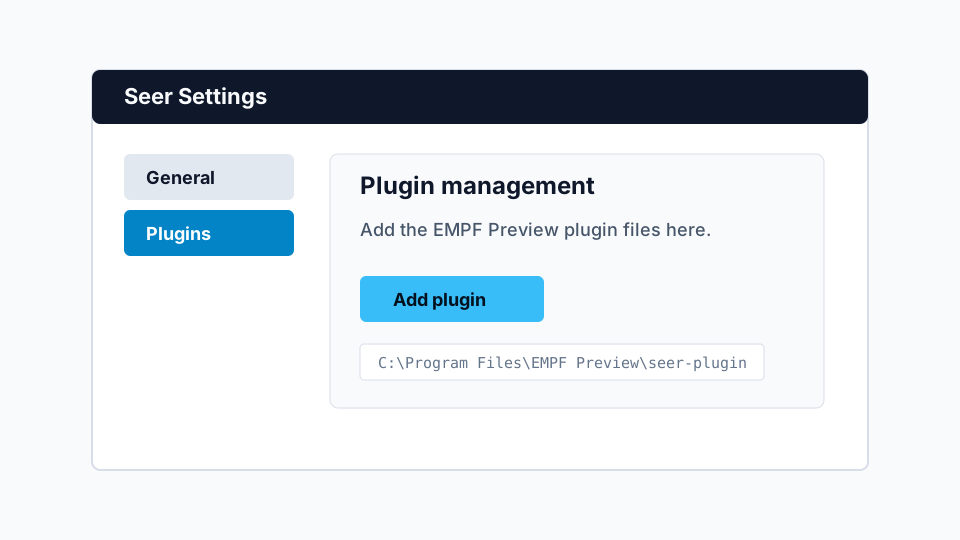
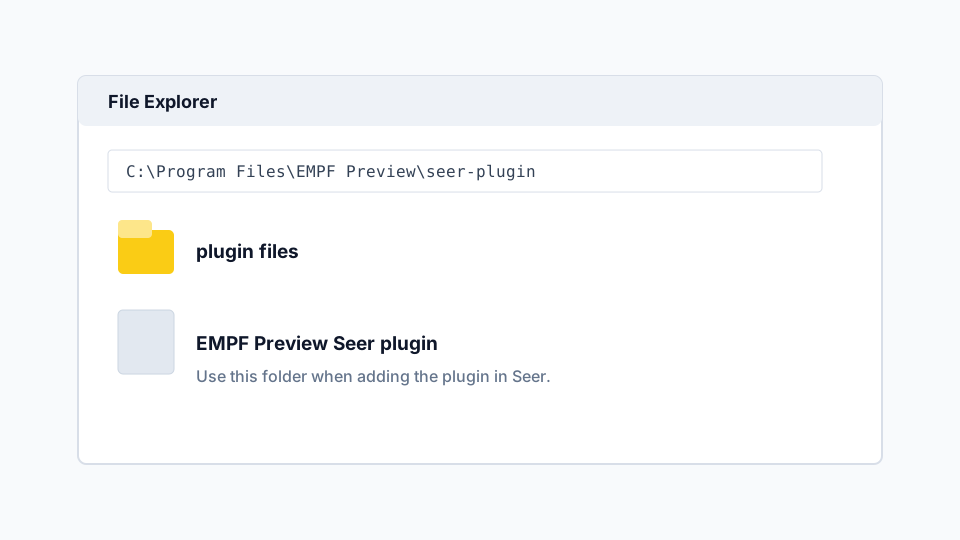
C:\Program Files\EMPF Preview\seer-plugin.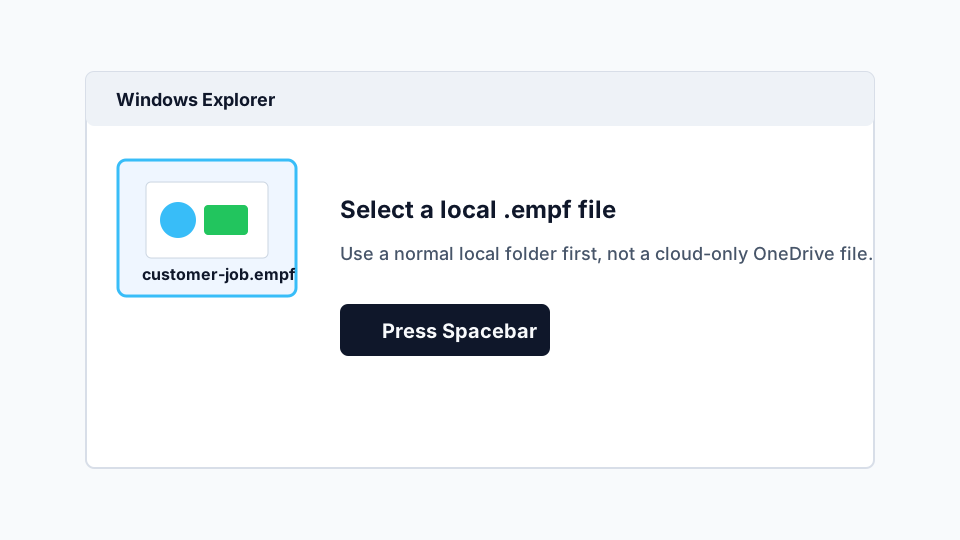
.empf file in Windows Explorer.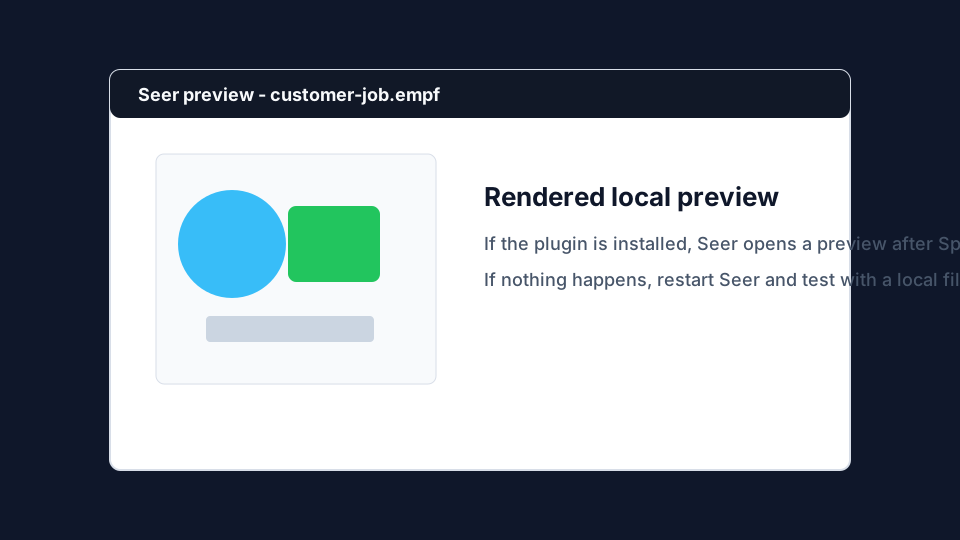
Find the plugin files
After installing EMPF Preview, open the included Seer plugin folder:
C:\Program Files\EMPF Preview\seer-pluginUse the plugin files from this folder when adding the plugin in Seer’s plugin settings.
Add the plugin in Seer
- Open Seer.
- Open Seer settings or plugin management.
- Add or install the EMPF Preview plugin files from the EMPF Preview installation folder.
- Restart Seer if prompted.
- Select a local
.empffile and press Space.
Verify after setup
- Select an
.empffile. - Press Space.
- Seer opens a rendered preview.
Preview size
The default Seer HTML preview route renders up to 2560 px for a balance between detail and speed.
Cache note
If Seer preview does not appear, first confirm the plugin is installed in Seer. If preview works but does not update after changing files, clear the Seer cache or test with a renamed copy.
Common problems: if Spacebar does nothing
- Confirm Seer is running.
- Confirm the EMPF Preview plugin files from
C:\Program Files\EMPF Preview\seer-pluginwere added in Seer settings. - Restart Seer.
- Test with a local
.empffile, not a cloud-only OneDrive file.